
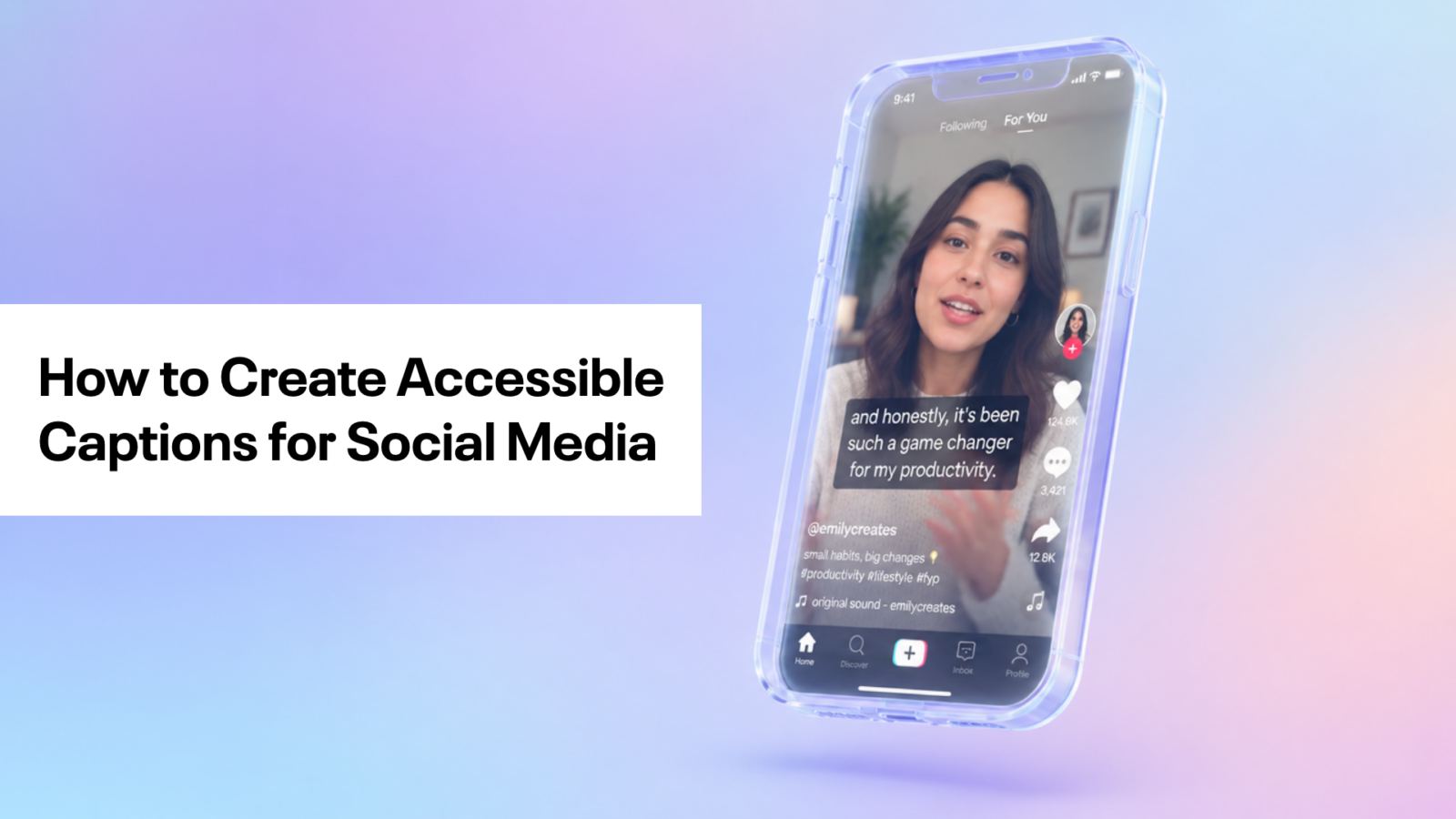
Captions are one of the most important social media assets for the deaf and hard of hearing (HOH) community, and one of the easiest to get wrong. With the UN CRPD turning 20 this December, and the World Federation of the Deaf having just marked 75 years of the International Week of Deaf People, it’s a good time to look at how we caption.
Captions have been adopted very broadly on social media platforms, with many of them offering auto captions. In fact, if you are in the content creation space, you have likely heard the stats about captions making a user 12% more likely to finish the video or boost retention by 80%.
We often talk about how captions become a visual hook to keep people interested, target users who scroll on mute, or help with SEO through the algorithm’s computer vision and optical character recognition (OCR). While these do help, it begins to pull the use of captions away from their most important purpose — to help the deaf and HOH community understand and consume your content. This has caused burned-in captions to become a stylistic choice, with many opting for elaborate fonts or colours that match what’s trending.
But what actually makes captions accessible? And, more importantly, how can you ensure that your captions stay accessible while also being eye-catching? We are here to break down some easy rules and tips on the most popular editing platforms so that you can reach more people while staying eye-catching for your broader audience.
What makes a good social media caption?
There are a few key things to keep in mind when making your captions, as they impact the readability and the pacing of your video.
- Positioning: Before you even begin filming, you need to think about where your captions will go. They cannot be over any UI or someone’s face. Generally, captions should go into the bottom or top thirds of your video, depending on the content and platform, so it’s important to keep that in mind when filming anything where someone is speaking or there is a voiceover.
- Font size: Once you’re editing and you have your captions written out, you can get a better understanding of how large your font should be. Screen sizes vary a large degree, so it’s important to have something that is readable on a small screen at low resolution. At cHaus, we generally recommend having your font be at least 30 pixels.
- Typography: Beyond font size, your font type matters a lot. The more intricate a font, the harder it is to read at a smaller font size. Sans-serif fonts, such as Figtree or Montserrat, work very well, especially in bold; however, if you are going for a more stylized look, some minimal serif fonts, such as Georgia or Playfair, also read well on a screen. Keep in mind that a serif font should be used in a larger font size, which requires more room where you position the captions.
- Colour: Oftentimes, people choose white for their caption colour. This can make the caption vanish on a lighter background. To improve readability, use colours that contrast with your background, add an outline to the font, or put your font into its own background square. (Pro Tip: make sure the colours you use are colourblind friendly! You can check your hex codes with a colour blindness simulator or a contrast checker).
- Timing: Your captions set the vibe of your video. The faster they go across the screen, the faster your video feels. There are multiple style types to pick from for the timing of captions, and it’s very dependent on your font size and your speaking pace, but we recommend generally breaking things at natural pauses (about every 5-7 words) as it keeps a steady pace without going too quickly to read properly. If you want fewer words on screen at once (especially if you have larger text), it helps when the word in the caption is highlighted when the speaker says it, as it contextualizes the content for someone who is HOH or deaf.
Why not use auto captions on social media?
Now, you might be sitting there thinking, “Wow, that’s a lot to think about. Why does all this work when the platform has built-in captions?” and to that I say, you have a fair point. But the downfall with auto captions is the quality assurance. Auto captions only happen after a video has been uploaded and a user has the auto caption setting enabled. It does nothing for the broader audience who listens on mute, and it can become confusing for the HOH community.
Even with the AI advancements, auto captions often make mistakes with jargon, accents, homophones, and fast speakers. Making your own captions increases accuracy, keeps them consistent across multiple videos on multiple platforms, and helps your SEO with the OCR.
How to make strong social media captions.
The majority of editing platforms make adding captions easy. They can automatically generate editable captions, and you can choose the style or customize your own. Below is a breakdown of how to make some awesome captions on CapCut, Canva, and Instagram Edits.
CapCut
After importing your video into your timeline, you can select the captions button at the bottom of the screen, or in the top left if you are on desktop. This will open your captions panel, allowing you to pick a template you would like or hit generate for default text.
(Note: auto-generate is a CapCut Pro feature. In the free version, you will need to select “enter captions” once in the captions panel and type out your captions).
By default, generated captions are a system font in white text. To edit this, go to your style panel by selecting the text in the timeline. Here you can change the font size, the colour, and even make it more accessible by adding a background or a shadow for contrast. When you edit a caption style, make sure that ‘Apply to all main captions’ is selected, so it applies to your whole video.
PRO TIP: This is also a good time to look at the timing of your captions by watching your video through on mute. Watching on mute helps your brain actually read the words rather than listening to the audio, and helps you find good timing for the captions against lip movement and reading speed.
If you want to break up a caption, we recommend splitting the caption in the timeline where you want the change to happen and then changing the words, as this keeps the visual consistent and helps CapCut recognize the new section as a main caption. You can change the content of the caption in your style panel.
Lastly, to ensure your captions are in a good position, you can change your ratio from original to 9:16, which will enable a new button in the bottom right of your preview screen to see the UI of each short form video platform (TikTok, Instagram, YouTube). Now you can position your captions and check they won’t be hidden behind any UI elements that could make them hard to read.
Instagram Edits
After importing your video, select captions in the bottom panel to open your captions tab. From here you can choose the source for the captions and the style you want to use, choosing ‘None’ if you want broad customization. You can then open your style panel to change the colour or font, and even add bilingual captions if needed. By changing something such as colour or position on one of your captions, it will automatically apply it to all the captions.
Canva
After importing your video into your timeline, select captions at the bottom of your screen (for desktop, select text and then captions under dynamic text). From here, you can choose a style, and if you want to select specific tracks to generate the audio from, which is helpful to avoid words in background music from getting picked up in your captions. Like the last two, you can choose from a template or customize your font by choosing the default font, generating the captions, and using the customizing features at the bottom of your screen (top panel for desktop).
Important note for Canva: it does not apply features to all text automatically. To move and change all the captions, ensure you have all of the captions selected in your timeline.
Want help ensuring your visual captions are accessible and strategic? Reach out to cHaus today.